Harvard's Climate Initiative
Including PDFs
There are several ways to include PDFs in the posts or pages:
OPTION 1 (easiest): make a link to the PDF file.
- Best option: upload the PDF to the Website’s Media just as you do for pictures:
NOTE: There is a size limit to what you can upload in the website’s Media. - Alternative: put the PDF in a Google drive or any other cloud based storage.
NOTES:- Make sure the sharing settings of the file allow anyone with the link to view it.
- Remember that deleting the file or changing the share settings might break the link
- Get the link and insert it in the pages content just like any other link.
- Best option: upload the PDF to the Website’s Media just as you do for pictures:
OPTION 2 (better, but more difficult): Use an image.
- convert the PDF into an image (preferably JPG):
- either make a screenshot,
- or use a PDF to image converter such as Smallpdf Tools, Canva, Adobe,…
- Include the image just like you do for pictures.
- Link the picture to the PDF file as described in option 1.
- Optionally, add a link to the PDF file under the image, something like “View, download or print the PDF file“
- convert the PDF into an image (preferably JPG):
NOTE: In this option, any links in the PDF won’t work anymore. This can be a problem or might be a plus if there are links such as unsubscribe that are specific to a particular user. E.g. when the pdf was originally an email such as a Newsletter.
OPTION 3 (to be avoided): Convert the PDF to HTML.
- there are PDF to HTML converters, but they can be expensive and the conversion quality is sometimes very poor.
NOTE: Beware of the Acrobat browser extension
When the Acrobat browser extension is installed in Google Chrome, the PDF file opens in Acrobat as soon as the mouse hoovers over the link. This can prevented by disabling the Acrobat extension.
To prevent it when the extension is enabled, you can link to an additional post with only the PDF link in it.
OPTION 1: Link to the PDF
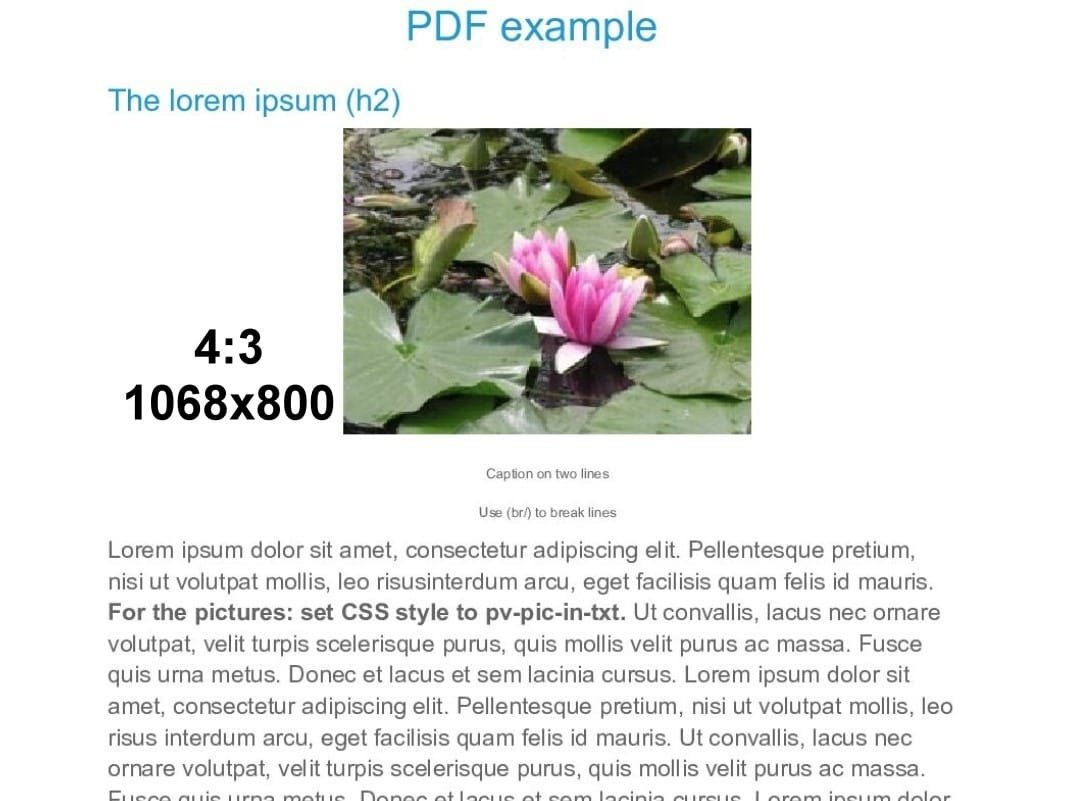
Clicking on the image will open the PDF file.
This could be a summary of what is in the PDF file:
Lorem ipsum dolor sit amet, consectetur adipiscing elit. Mauris vel ante non metus dictum sagittis. Duis et malesuada felis, vel commodo tellus. Nam eu arcu pellentesque, fringilla orci eu, euismod nisl. Suspendisse gravida porttitor fringilla. Ut rutrum ex ut consectetur venenatis. Suspendisse et purus ante. Nam condimentum enim in lobortis ornare. Quisque ultricies quam nec tortor pulvinar porttitor. Sed vestibulum euismod fringilla.
View, download or print the PDF file.
Hereunder a button link to the PDF: block > Box: Button (file)
OPTION 2: PDF image
Next we include an image (PNG or JPG) of the whole PDF with a button to open the PDF file itself.
We used an online PDF to JPG/PNG converter and stitched the pages together in one file.
NOTE that the JPG images of text are more blurry than PNG.
However, PNG files are significantly larger than JPG, therefore slowing down the loading of the page.
JPG Image 1200x...
block > image > Style: As-is, link: none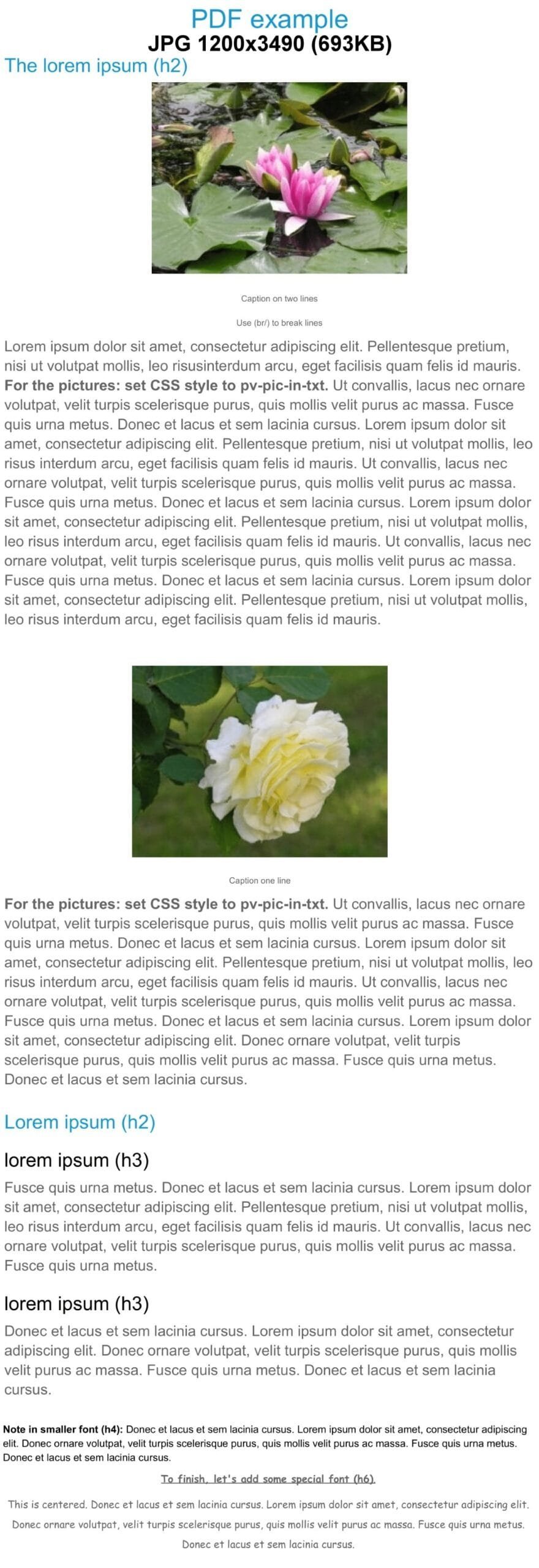
PNG: 693 KB
JPG Image 800x...
block > image > Style: As-is, link: none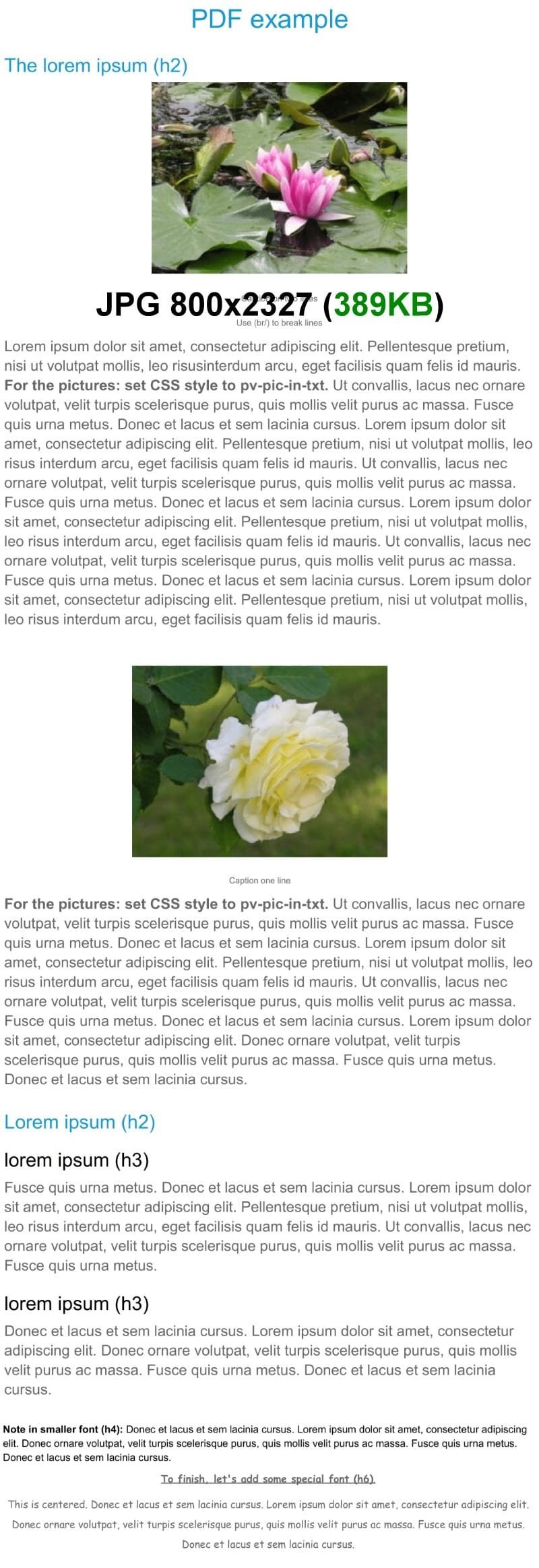
JPG: 389 KB